
Introduction#
I stumbled upon this little game on Steam, but found it quite silly that you have to manually click the chest every 30 minutes to claim a gift.
After doing some research online, I found a method using dnSpy to modify the game’s source code to automatically claim the chest. So here’s a tutorial to show how to claim chests automatically every 30 minutes.
Steps#
Download dnSpy and extract the files.
- For most Windows systems, the
dnSpy-net-win64.zipversion should work fine.
- For most Windows systems, the
Open
dnSpy.exefrom the extracted folder, clickFile->Open, and navigate toSteam\steamapps\common\BongoCat\BongoCat_Data\Managed\Assembly-CSharp.dll.In the left panel (Assembly Explorer), open
Assembly-CSharp, then navigate toAssembly-CSharp.dll/BongoCat/Shop/TimerUpdate().Right-click anywhere in the method and select
Edit Method (C#)...to begin editing.Insert the following line right below line 20, which is
this._shopVisuals.SetActive(true);:this._shopItem.Buy();Warning! Make sure to insert this line inside the innermostif (this._showChestPopup.Value && this._shopItem.CanBuy())condition. Otherwise, it will cause an error.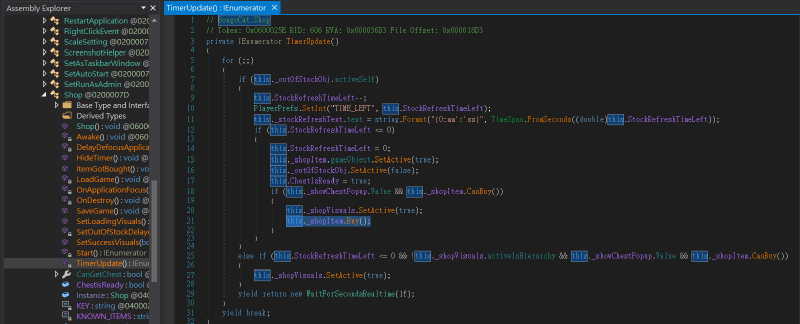
Click
Compilein the bottom-right to compile the changes. Then go toFile->Save Moduleto save the edited file.
After completing these steps, launch Bongo Cat. It will now automatically claim the chest every 30 minutes!
Notes#
- Every time Bongo Cat updates, you’ll need to repeat the above steps, since the update will overwrite your changes.
- Trying to abuse this to grab a bunch of gifts quickly is likely difficult, since gift claiming is tied to the Steam API and involves a complex mechanism. So it’s better to stick to the 30-minute interval.
- If you see a
Steam Error, try restarting Bongo Cat. This may happen if your local timer is out of sync with Steam’s server, causing an API error when claiming the gift. Restarting a few times should fix it.